
Screen mirroring
Your Android phone's screen on your computer
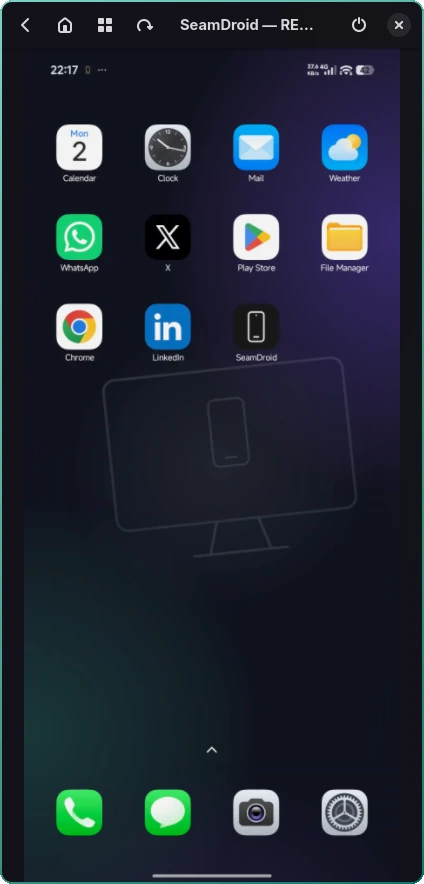
SeamDroid shows your phone's screen in a window on your Linux or Windows desktop. Control it with the mouse and keyboard and hear its sound on your computer — over Wi‑Fi or a cable, no root.
Works over wireless or USB debugging — ADB. Turn it on once in the phone's developer options; no root needed. How to turn it on
What you can do
- Use your phone from the computer. Clicks and gestures with the mouse, typing on the computer's keyboard. The mouse wheel scrolls like a finger swipe — TikTok and Reels feeds too.
- Make the window any size. The picture stays sharp and keeps the screen's proportions; one button turns it to landscape.
- Connect several phones. Each gets its own window, all opened from the tray menu.
- Hear the phone on the computer. App audio plays through the computer's speakers or headset; turn it on from the tray.
- Copy and paste between devices. The clipboard is shared both ways, and files go both ways too.
Picture quality
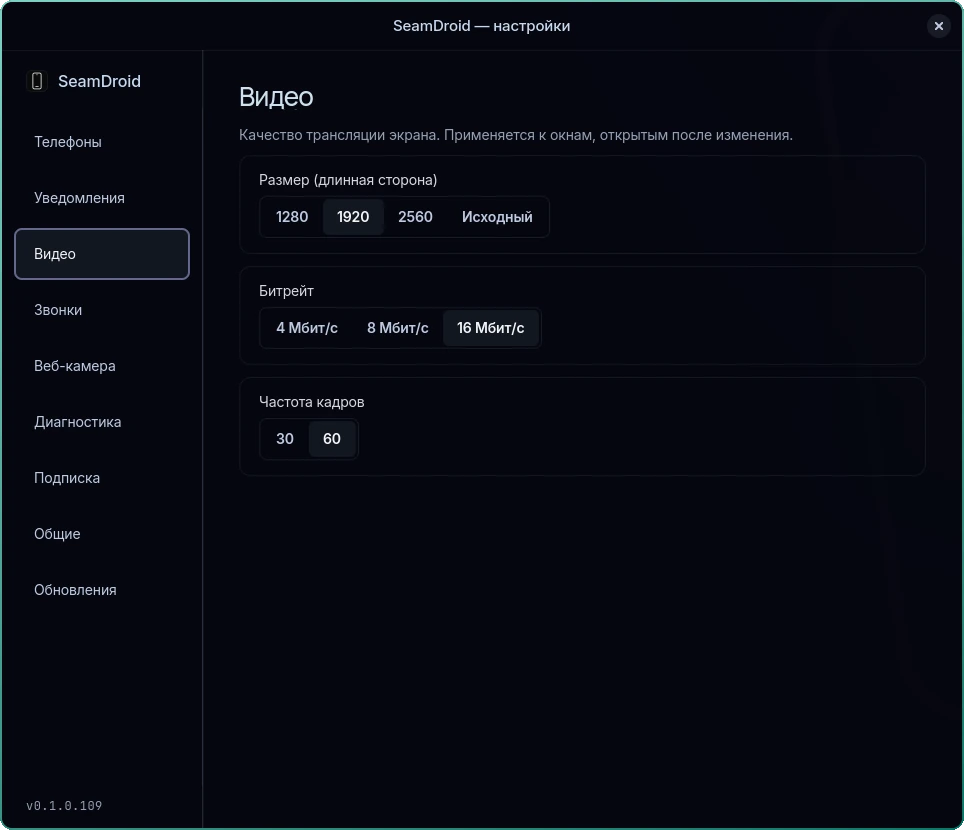
Settings → Video sets the size (1280, 1920, 2560 px or the original), the bitrate (4, 8 or 16 Mbit/s) and the frame rate (30 or 60 fps).
For free, mirroring runs at up to 30 fps and 1280 px on the long side. A subscription lifts the limits.
How to turn it on
- Install SeamDroid on the computer (download) and the app on the phone, then pair them with the QR code.
- On the phone, turn on developer options and Wireless debugging.
- On the computer: Settings… → Phones → Add phone → Full mode, then scan the QR code from the phone's Wireless debugging screen or enter the six digits. A USB cable works too.
- Open the screen from the tray menu: Show screen.
From then on SeamDroid connects by itself — after a restart of the computer or the phone and on a new network. Step by step, including Xiaomi, Redmi and POCO: setup guide.
SeamDroid, scrcpy and KDE Connect
| SeamDroid | scrcpy | KDE Connect | |
|---|---|---|---|
| Screen and control | Yes | Yes | No |
| Notifications with reply | Yes, with a subscription | No | Yes |
| Phone camera as a webcam | Yes | Linux only, from the command line | No |
| Connecting | By itself, from the tray, Wi‑Fi or cable | A command each time | By itself, Wi‑Fi |
| Linux and Windows | Yes | Yes | Yes |
scrcpy is a great free tool, and SeamDroid's phone side uses the same techniques. The difference is that SeamDroid is one tray app: screen, notifications, clipboard, audio and webcam are set up once and then just work.
What you need
- A phone with Android 11 or later.
- A computer with Arch Linux, CachyOS or Fedora 42 (Wayland session), or Windows 10 or 11, 64‑bit.
- A shared Wi‑Fi network or a USB cable. No internet needed.
Questions and answers
Do I need root?
No. Wireless debugging from developer options is enough — every phone with Android 11 or later has it.
Do I need internet access?
No. The phone and the computer talk directly over your Wi‑Fi or a cable; nothing leaves your network.
Is it free?
Yes: mirroring at up to 30 fps and 1280 px, control, audio and the clipboard are free forever. A subscription lifts the quality limits and adds notifications and calls.
Does it work on Xiaomi, Redmi and POCO?
Yes. For mouse control they need “USB debugging (Security settings)” turned on — the setup guide shows how.
Can I connect several phones?
Yes. Each phone opens in its own window, and they share one clipboard.
Ready to try it?
Start for free: download SeamDroid for Linux or Windows.