Clipboard and files
One clipboard, files both ways
Copy on the computer, paste on the phone. And back. Files move between your devices in a couple of taps — no cloud, no cables.
No ADB
Works in base mode: just the SeamDroid app on the phone, no developer options.
Clipboard
- Computer to phone — by itself: copy text on the computer and it's already in the phone's clipboard.
- Phone to computer — one tap: the Clipboard → PC tile in quick settings, the button in SeamDroid's notification, or Share → To computer. That's how Android works: background apps can't read the clipboard on their own.
- In full mode the phone's clipboard reaches the computer by itself, no taps.
- Several phones share one clipboard with the computer.
Files
- From the phone: Share → To computer from the gallery, a file manager or any app. The file lands in Downloads.
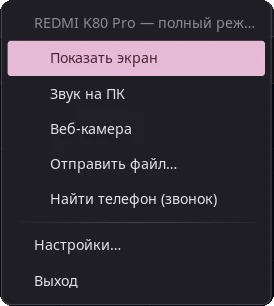
- From the computer: Send a file… in the tray menu (Linux) or on the phone's card in the settings (Windows).
Private
Text and files go straight over your Wi‑Fi through an encrypted connection — not through a cloud or anyone else's servers.
Questions and answers
Is it free?
Yes, the clipboard and files work in the free version.
Do I need developer options?
No. The SeamDroid app on the phone is enough. With full mode the phone's clipboard reaches the computer by itself.
Where do files from the phone go?
On the computer — to the Downloads folder.
Ready to try it?
Start for free: download SeamDroid for Linux or Windows.