Notifications
Your phone's notifications on your computer
Messages, calls and reminders from your phone appear right in your computer's notifications — with action buttons and quick reply. No cloud: the phone and the computer talk directly.
Works in base mode: just the SeamDroid app on the phone, no developer options.
What reaches your computer
- Notifications from any app — as ordinary Linux or Windows notifications, with the icon and the text.
- Action buttons from the notification — the same ones as on the phone.
- Quick reply right from the notification, SMS included.
- Incoming calls: see who's calling; answer or decline in the notification on the computer.
- Dismiss on either side: close a notification on the computer and it's gone from the phone too.
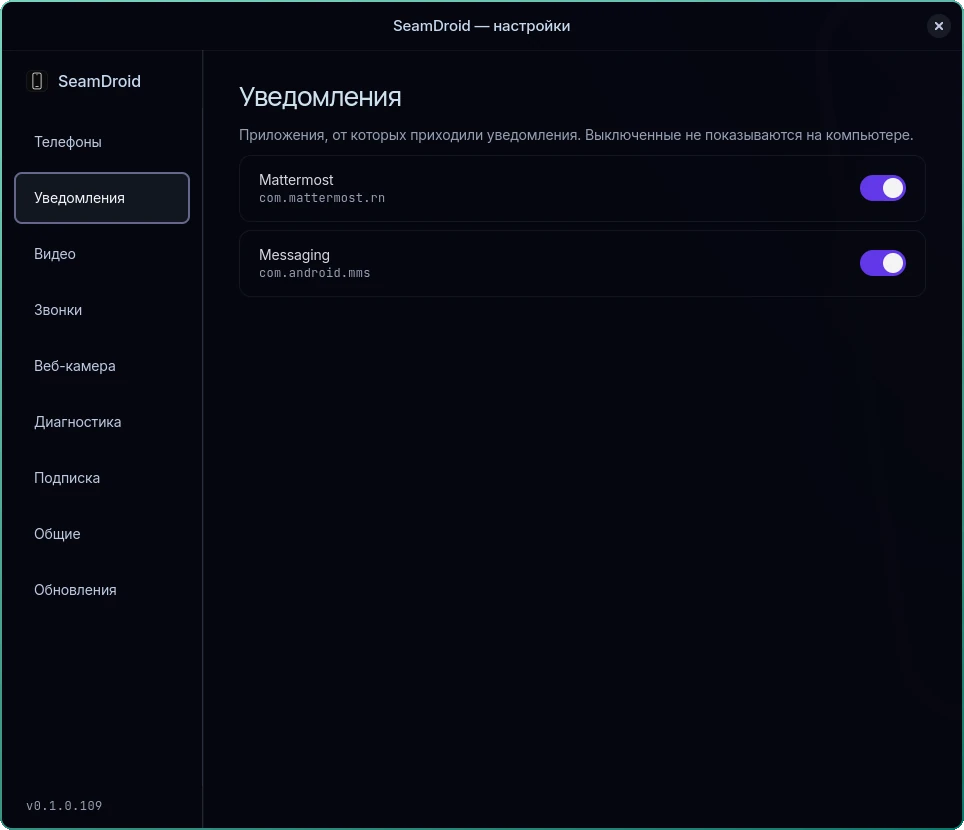
Settings → Notifications turns off apps you don't need on the computer.
Calls through the computer
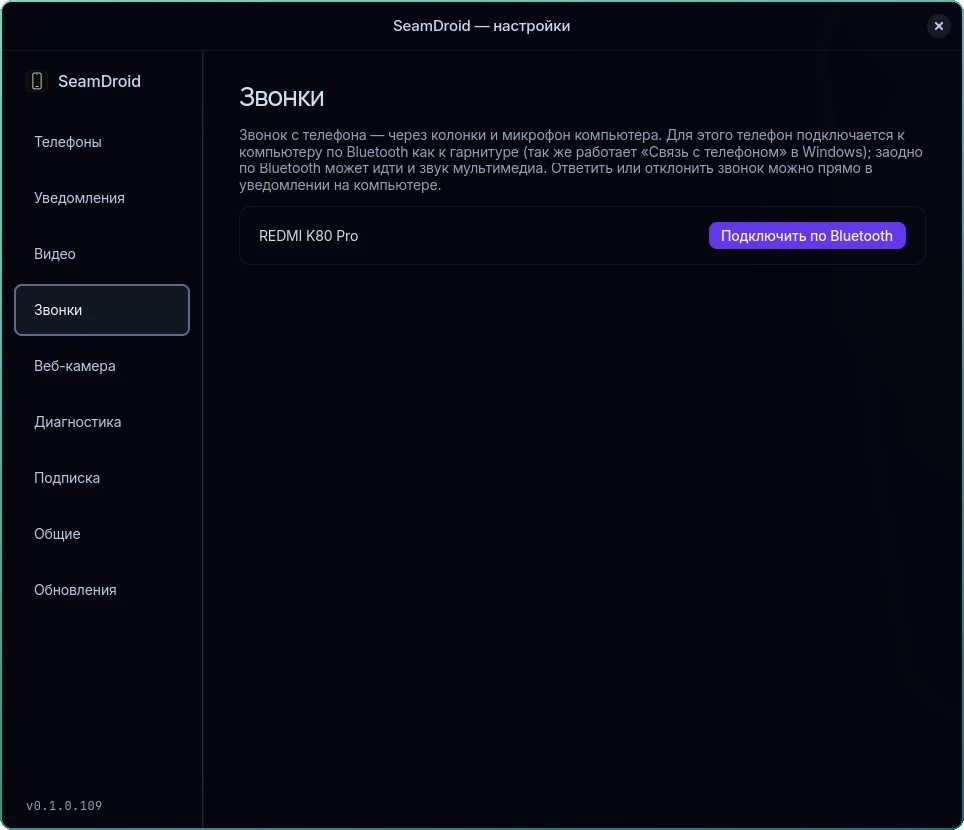
On Linux you can also talk through the computer's speakers and microphone: the phone connects to it over Bluetooth as to a headset. In the settings, open Calls → Connect over Bluetooth and confirm the code on the phone.
How to turn it on
- Install SeamDroid on the computer (download) and the app on the phone.
- Pair them with the QR code or the six digits. No developer options needed.
- In the phone app, allow notification access — the check screen shows what to turn on. On Xiaomi, Redmi and POCO, lift the battery restrictions and turn on autostart (how).
- Enter your subscription key: tray → Settings… → Subscription → Activate.
Private
Notifications go straight from the phone to the computer over your Wi‑Fi, through an encrypted connection. No cloud, no sign‑up, no account — message texts never pass through anyone else's servers, ours included.
Price
Notifications and calls on the computer are part of the subscription; one key works on up to three computers. The key appears on the site right after payment.
Questions and answers
Do I need developer options?
No. Notifications only need the SeamDroid app on the phone, paired with the computer.
Can I reply to SMS from the computer?
Yes, right from the notification. On the first reply Android may ask to allow sending SMS.
Notifications arrive, then stop
That's almost always battery saving: set SeamDroid to “No restrictions” on the phone and turn on autostart.
Do I need internet access?
No, just a shared Wi‑Fi network. Internet is only needed now and then to check the subscription key.
Does it work on Windows?
Yes, on Windows 10 and 11 notifications go to the Windows notification center.
Ready to try it?
Start for free: download SeamDroid for Linux or Windows.