Screen mirroring
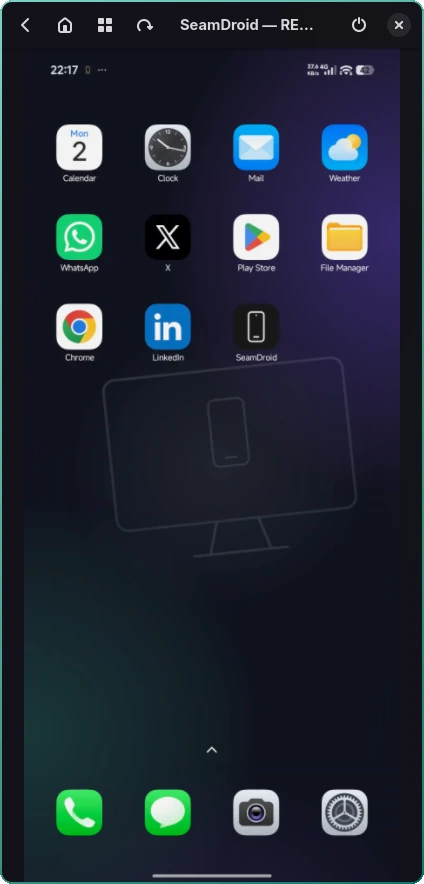
Full mode · ADBSee and use your phone in a window on your desktop — smooth, responsive and sharp at any window size. Several phones can be on screen at once, and one click turns the picture to landscape.
Android · Linux · Windows
Your phone's screen, notifications, clipboard and audio — right on your desktop. Stay focused on your work and never reach for your phone again.
Features
Reply to messages, move text between devices and use Android apps without ever leaving your computer.
See and use your phone in a window on your desktop — smooth, responsive and sharp at any window size. Several phones can be on screen at once, and one click turns the picture to landscape.
Taps, gestures and typing from your computer's keyboard. The mouse wheel scrolls feeds like a finger swipe. Back, Home and Recents are always one click away.
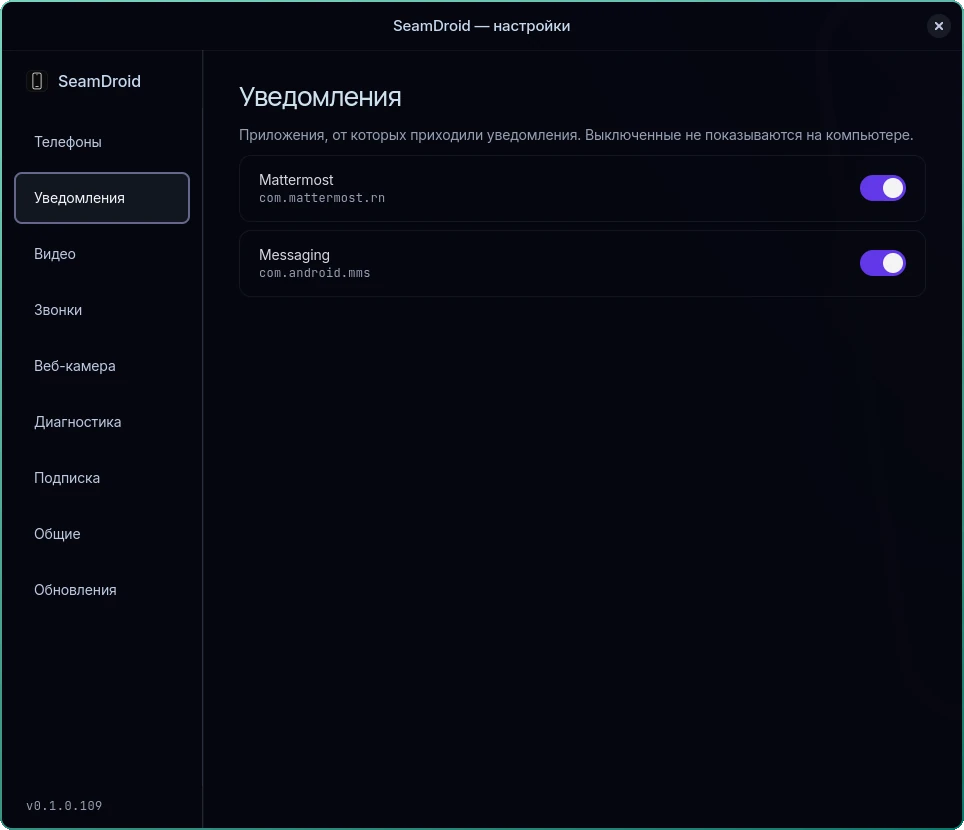
Android notifications appear as native desktop notifications, with action buttons and quick reply — including SMS. Dismissals sync both ways.
Copy on the computer — it's already on the phone. From the phone, one tap on the tile or Share sends text and files to the computer; in the full mode the clipboard syncs by itself.
Sound from phone apps plays through your computer's speakers or headset. Turn it on from the tray menu.
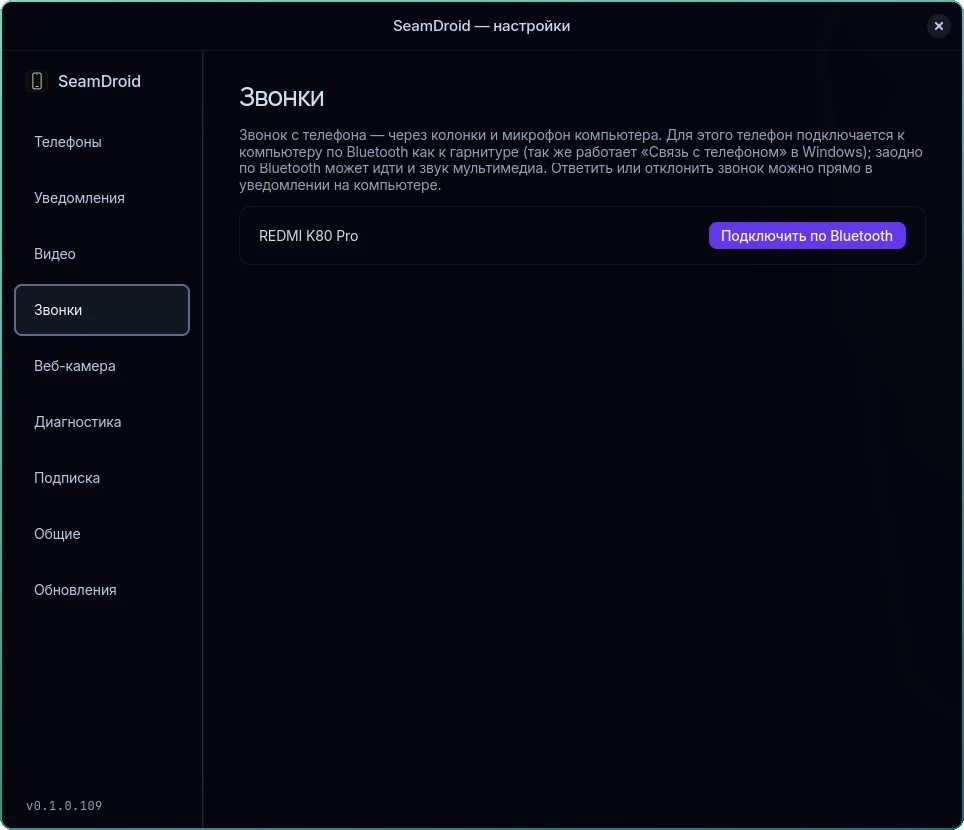
See who's calling right on your computer. On Linux, take the call with the computer's headset over Bluetooth.
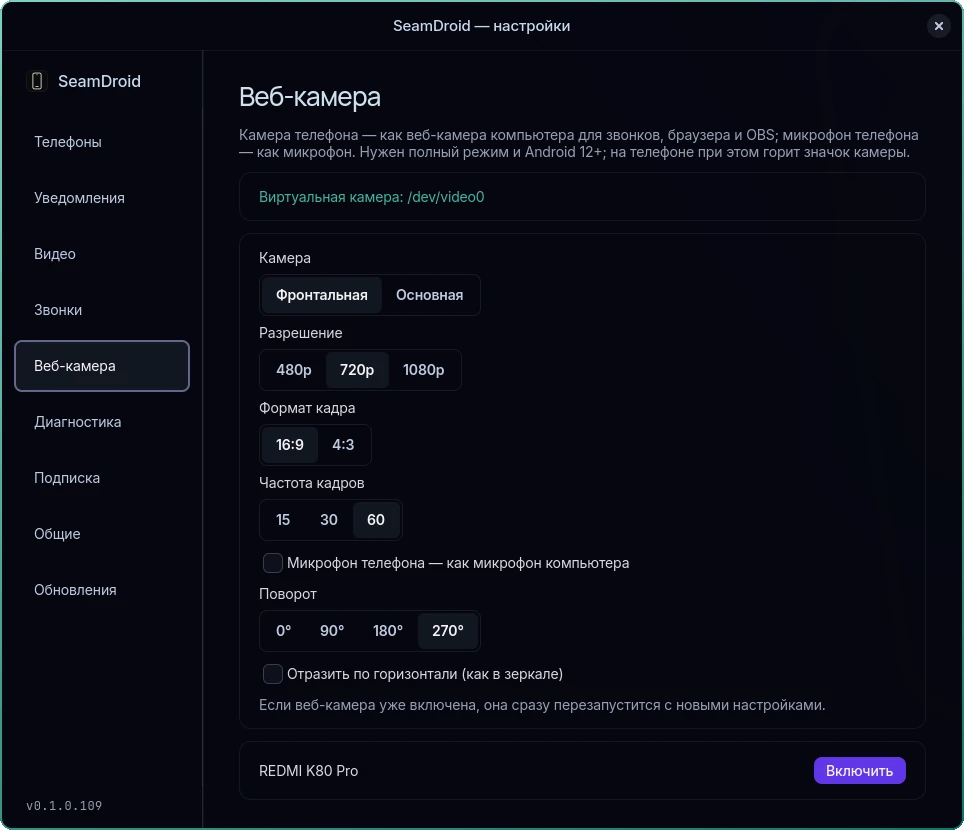
Video calls on the phone's camera: it shows up on the computer as an ordinary webcam with a microphone. Front or back camera, 480p to 1080p, 16:9 or 4:3, up to 60 fps, rotate and mirror.
Lost it somewhere in the flat? One click on the computer, and the phone rings at full volume — even in silent mode.
SeamDroid checks for a new version once a day and installs it with one button.
Screenshots
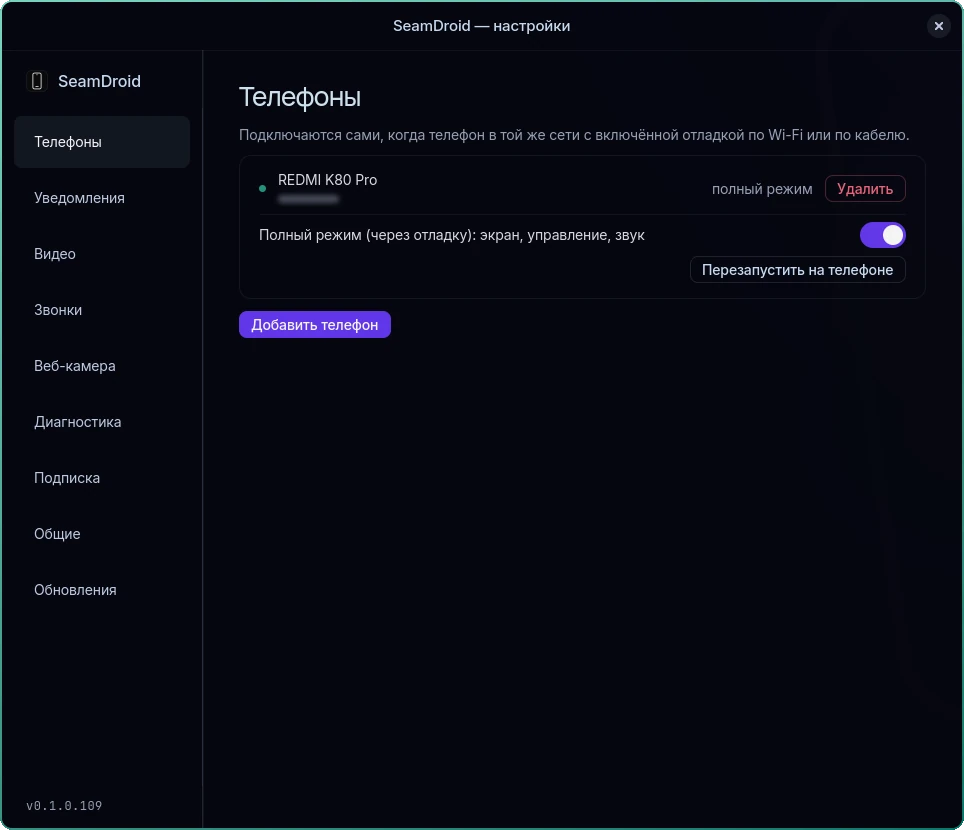
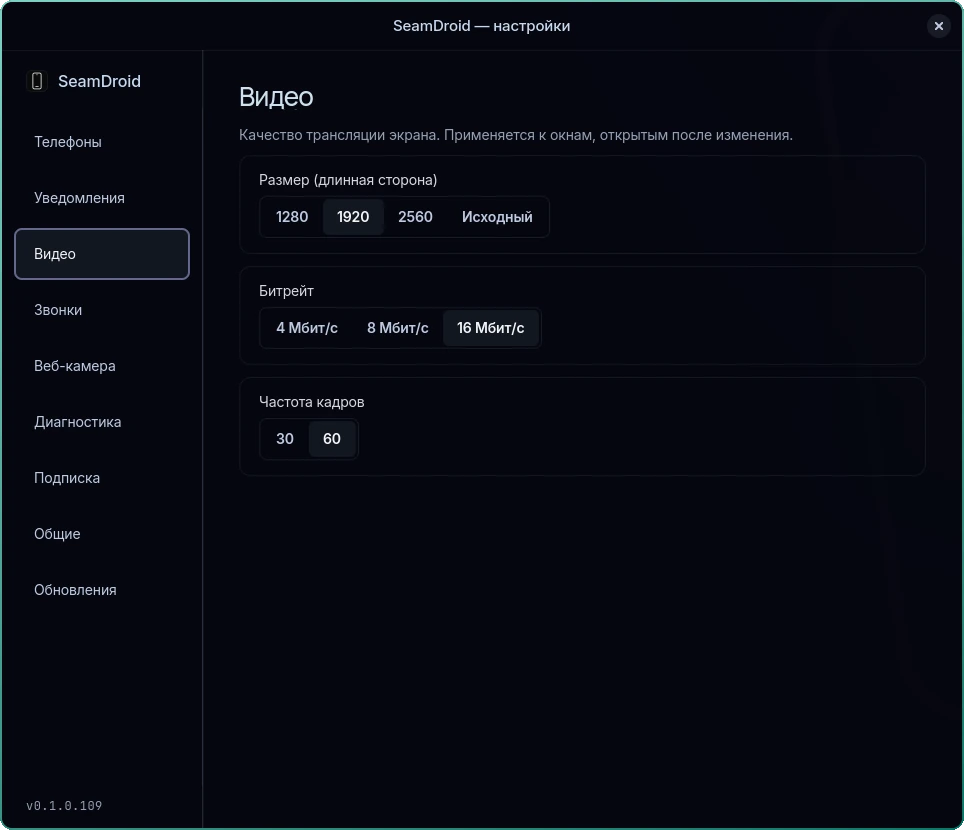
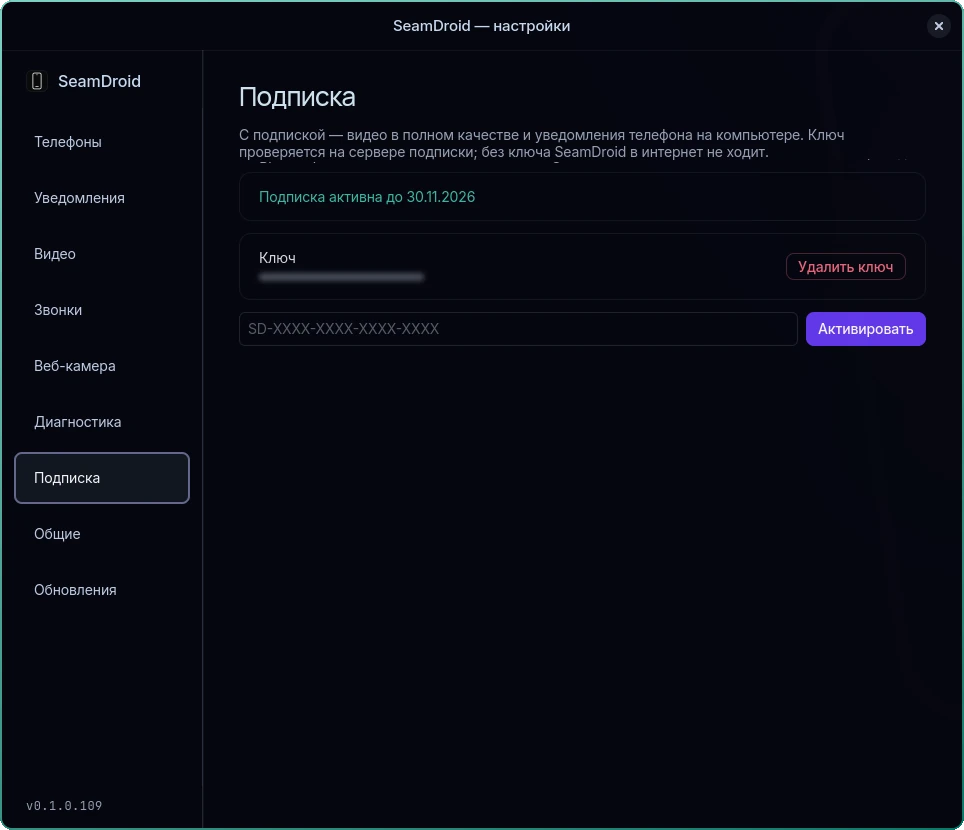
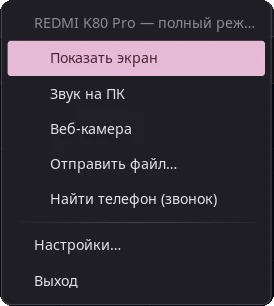
The phone in a window on the desktop, the tray menu and the settings — screenshots from Linux, in the Russian interface.
Why SeamDroid
Everything stays between your own devices — and once it's set up, you never have to think about it again.
No cloud, no sign-up, no tracking. Messages, notifications and clipboard contents never pass through anyone else's servers.
A shared Wi‑Fi network is all your phone and computer need — no internet access, even on a closed office network.
Pair once and SeamDroid reconnects on its own — after a restart, a new Wi‑Fi network or a phone reboot.
Connect several phones to one computer: they share a single clipboard, and the tray menu opens any phone's screen.
Screen mirroring runs only while its window is open. The rest of the time SeamDroid stays quietly in the background.
Install the app and scan a QR code — that's it. Turn on the full mode with the phone's screen and control whenever you like.
Pricing
Everyday sync is free forever. A subscription unlocks full-quality mirroring and webcam, notifications and calls.
$0
Forever, no key needed
Best value
$1.12/ month
or $11.21 a year — save 17%
Payment through CloudTips, in rubles. You get an order code: paste it into the payment comment, and the key appears right here on the site. Enter it in SeamDroid: tray → “Settings…” → “Subscription” → “Activate”.
Setup
Download the package for your system and install it. SeamDroid starts automatically when you sign in and lives in the system tray.
Download the SeamDroid APK below. No developer options needed: clipboard and files work right away, notifications with a subscription. Screen, control and audio come with the full mode — turn it on any time later.
From the tray, open “Settings…” → “Add phone” and scan the QR code with your phone’s camera, or tap “Add computer” in the app and enter the six digits. The app checks its own setup and shows what to turn on.
Download
Version 0.1.0 · 64-bit systems (x86_64)
curl -LO https://seamdroid.nicko.space/packages/seamdroid-x86_64.pkg.tar.zstsudo pacman -U ./seamdroid-x86_64.pkg.tar.zstsystemctl --user enable --now seamdroidsudo dnf install https://seamdroid.nicko.space/packages/seamdroid-x86_64.rpmsystemctl --user enable --now seamdroidInstalls in seconds, no administrator rights required.
Portable version: seamdroid-windows-x86_64.zip
Open the file on your phone and allow the install. No developer options needed.
SHA-256 checksums for all files: SHA256SUMS
FAQ
No. SeamDroid works with any phone running Android 11 or later, exactly as it came out of the box.
No. In the basic mode you only install the app: the clipboard, files and, with a subscription, notifications work right away. Developer options and wireless debugging are needed only for the full mode — the phone's screen, control and audio on the computer.
No. A shared local Wi‑Fi network is all your phone and computer need, and your data never leaves that network. With a subscription, SeamDroid briefly checks the key online every few hours; offline it stays active for up to 7 days.
Only on your own devices. SeamDroid doesn't use cloud services, doesn't require an account and doesn't collect usage statistics. The subscription check sends only the key and an anonymous computer ID. Only devices you have paired — confirmed with a code — can connect to each other.
Press “Buy monthly” or “Buy yearly” in Pricing, paste the order code into the payment comment and pay — the site shows a key like SD-XXXX-XXXX-XXXX-XXXX. In SeamDroid open the tray → “Settings…” → “Subscription”, paste the key and press “Activate”. One key works on up to 3 computers.
Yes. Every paired phone connects automatically, and the clipboard is shared across all of your devices.
Very little. Screen mirroring runs only while its window is open; notifications and the clipboard have a negligible effect on battery life.
Yes, in the full mode. Turn on “Webcam” in the tray: the phone's camera and microphone appear as “SeamDroid Camera” in Zoom, Google Meet, Teams, OBS and your browser. Resolution, frame shape, frame rate, rotation and mirroring are on the “Webcam” settings page. On Windows the virtual camera needs Windows 11.
It updates itself: once a day it checks this site for a new version and offers to install it — on Windows from a notification, on Linux from the “Updates” settings page. The check can be turned off in the settings.
Any Android phone running Android 11 or later, including Samsung, Google Pixel, Xiaomi, Redmi and POCO.
SeamDroid is a product of Nicko Space. Questions, ideas and payment issues: write to @seamdroid_bot on Telegram.
Available for Linux and Windows. Setup takes a few minutes.