
Control
Your phone under your mouse and keyboard
Reply in messengers, scroll feeds and use any phone app without taking your hands off the computer's keyboard and mouse.
Works over wireless or USB debugging — ADB. Turn it on once in the phone's developer options; no root needed. How to turn it on
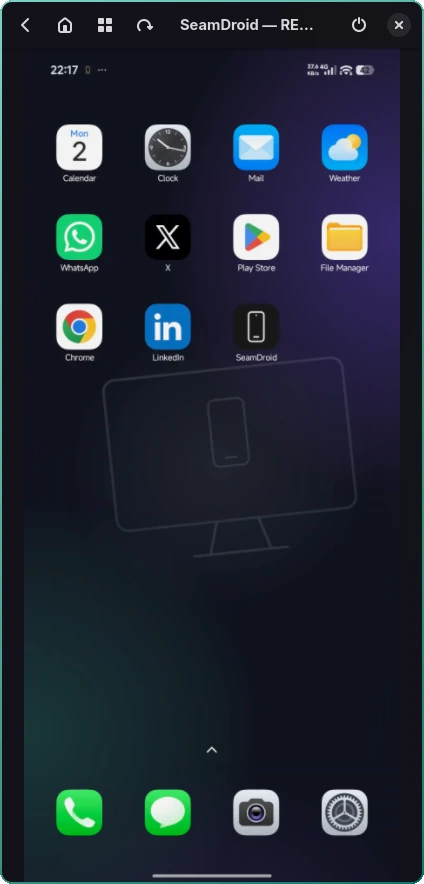
What you can do
- The mouse as your finger. A click is a tap, a drag is a swipe, a long press is a long tap.
- The mouse wheel scrolls like a finger swipe — feeds, lists, chats, and TikTok and Reels too: a whole page turns.
- The computer's keyboard types right into the phone's app — handy for long messages.
- System buttons Back, Home and Recents are always in the window's title bar.
- Rotate and lock: one button turns the screen to landscape or switches it off.
How to turn it on
Control works in the phone's screen window — connect the phone in full mode and click Show screen in the tray. More about the window: phone screen on your computer.
For the phone to follow the mouse and keyboard, turn on USB debugging (Security settings) in developer options and restart the phone. More
Questions and answers
Is it free?
Yes, mouse and keyboard control is in the free version.
Do gestures work?
Yes: swipes by dragging the mouse, wheel scrolling, long press.
I see the screen, but the mouse does nothing
On Xiaomi, Redmi and POCO turn on “USB debugging (Security settings)” and restart the phone.
Ready to try it?
Start for free: download SeamDroid for Linux or Windows.